

Introduction
Etaprise FSM is an enterprise Field Service Management platform that enables service organizations to manage customers, appointments, dynamic work orders, contracts, van inventory, assets, field technicians, and invoicing from a single unified system.
The Zoho Books integration allows users to securely connect their Zoho Books account with Etaprise and synchronize customer information, contact directories, and invoice records for frictionless operational execution.
Prerequisites
Before initializing the integration, ensure that:
- You have an active, verified Zoho Books account with administrator access.
- You have authorized administrative access to your Etaprise FSM tenant.
- You have permission to authorize third-party OAuth applications in Zoho Books.
- Customer records and tax profiles are configured in your Zoho Books organization.
- At least one active Zoho Books business organization exists.
- Your Zoho Books account email is registered or authorized in Etaprise.
Accessing Etaprise from Zoho Marketplace
- Open the official Zoho Marketplace in your browser or through the Zoho dashboard.
- Search for Etaprise FSM – Zoho Books Integration in the application store.
- Open the application listing details page.
- Click Visit Website to be redirected to the dedicated integration landing page.

Accessing the Etaprise Landing Page
The Etaprise landing page provides an overview of features, supported workflows, and bi-directional sync capabilities. Review the documentation and click the Login button in the top navigation bar to begin.
Signing in with Zoho Books
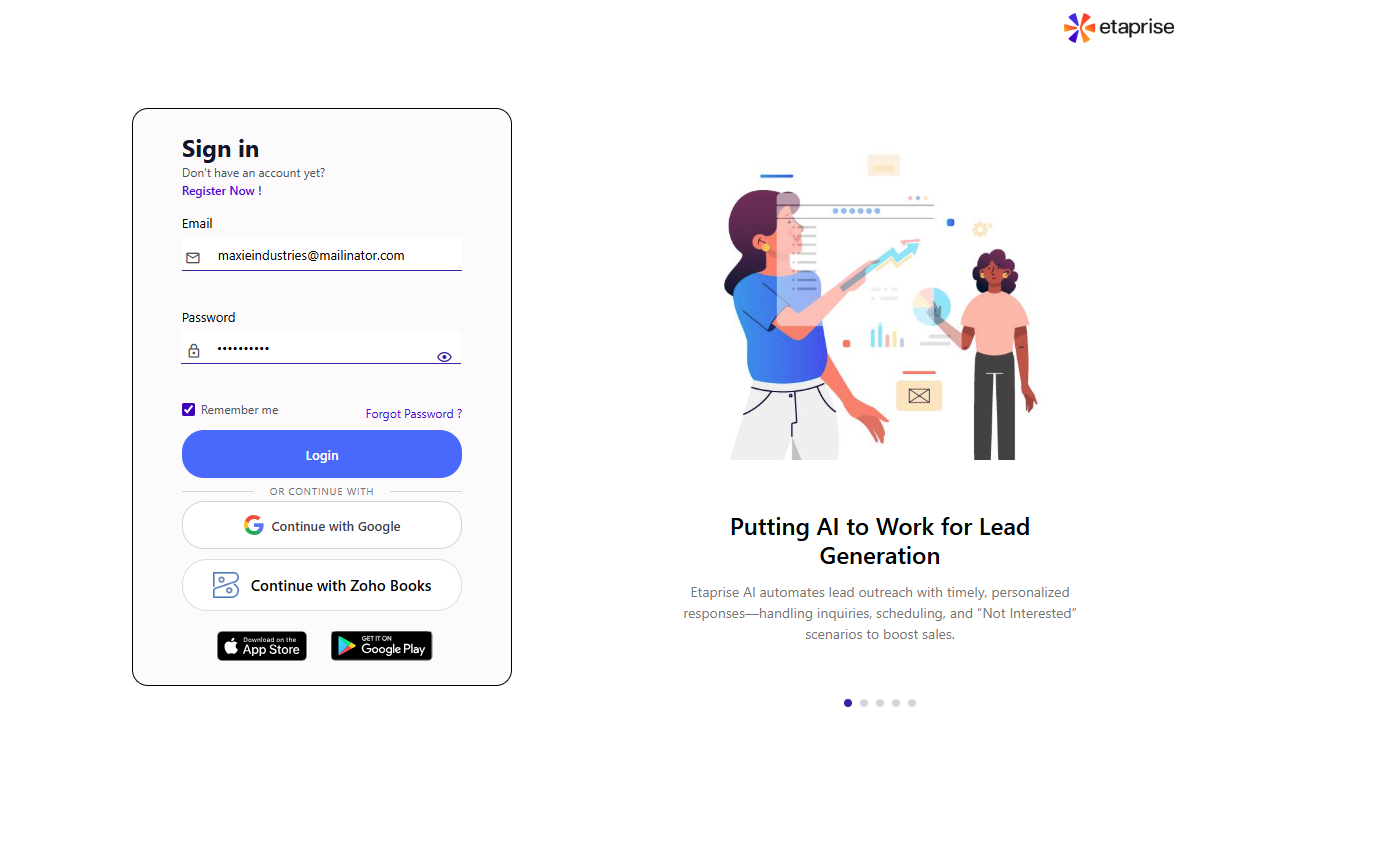
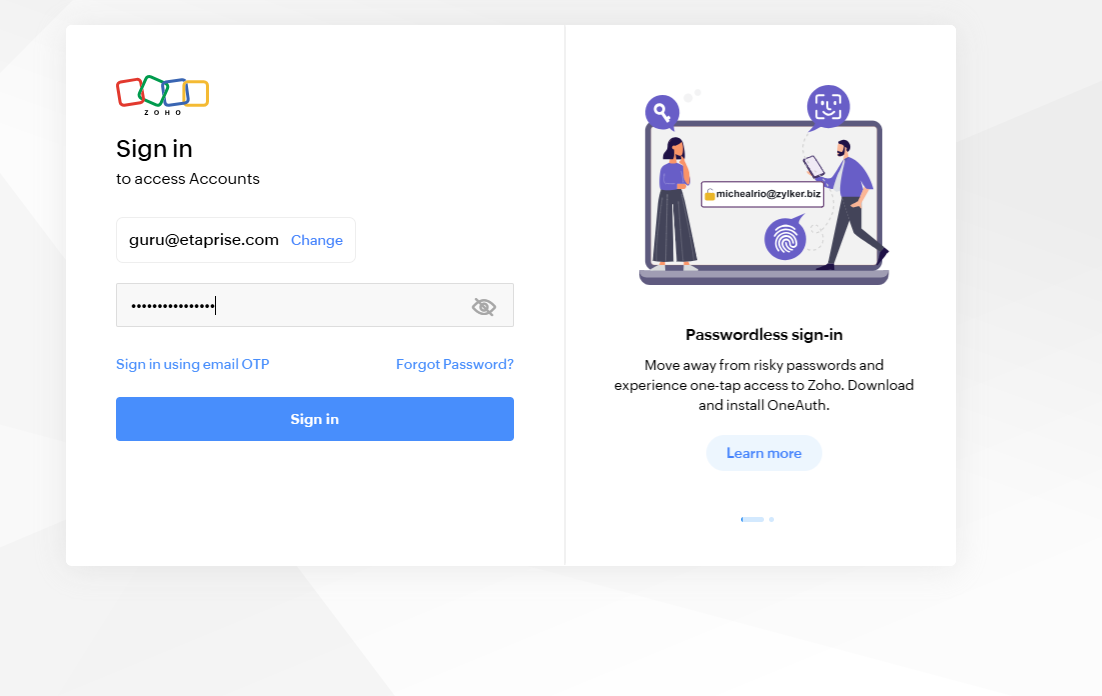
On the Etaprise login screen (go.etaprise.ai/login), click Continue with Zoho Books.
Granting Access Permissions
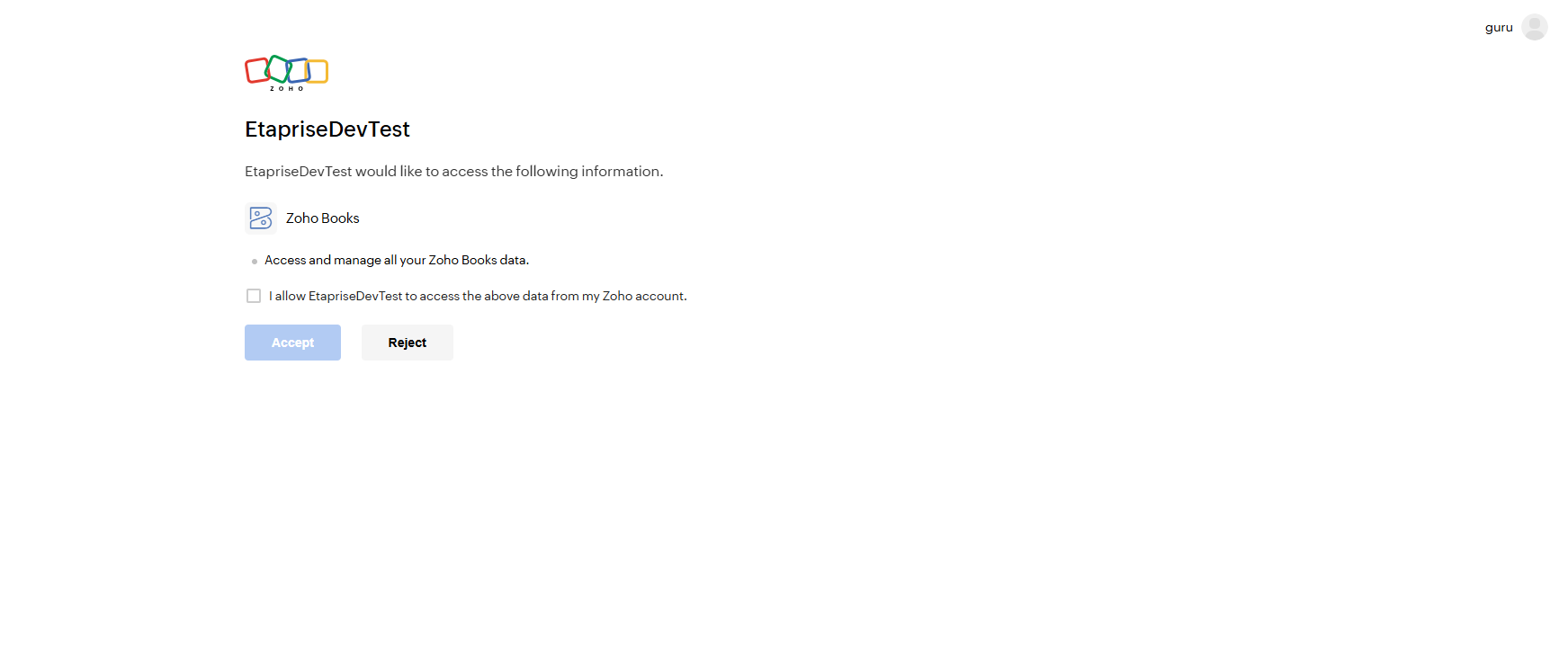
Review the requested permissions (Customer read/write, Invoice generation, Organization profiles), check the consent confirmation box, and click Accept to grant OAuth access.
User Authorization Validation
After consent is registered, Etaprise validates whether your authenticated Zoho account is approved:
If your Zoho Books organization is already registered and active in Etaprise, you will be redirected straight to your operations dashboard with the connection verified.
If your account has not yet been registered or approved, a notice displays directing you to contact the Etaprise team to request a trial account, subscription, or tenant activation.
Connecting Zoho Books in Settings
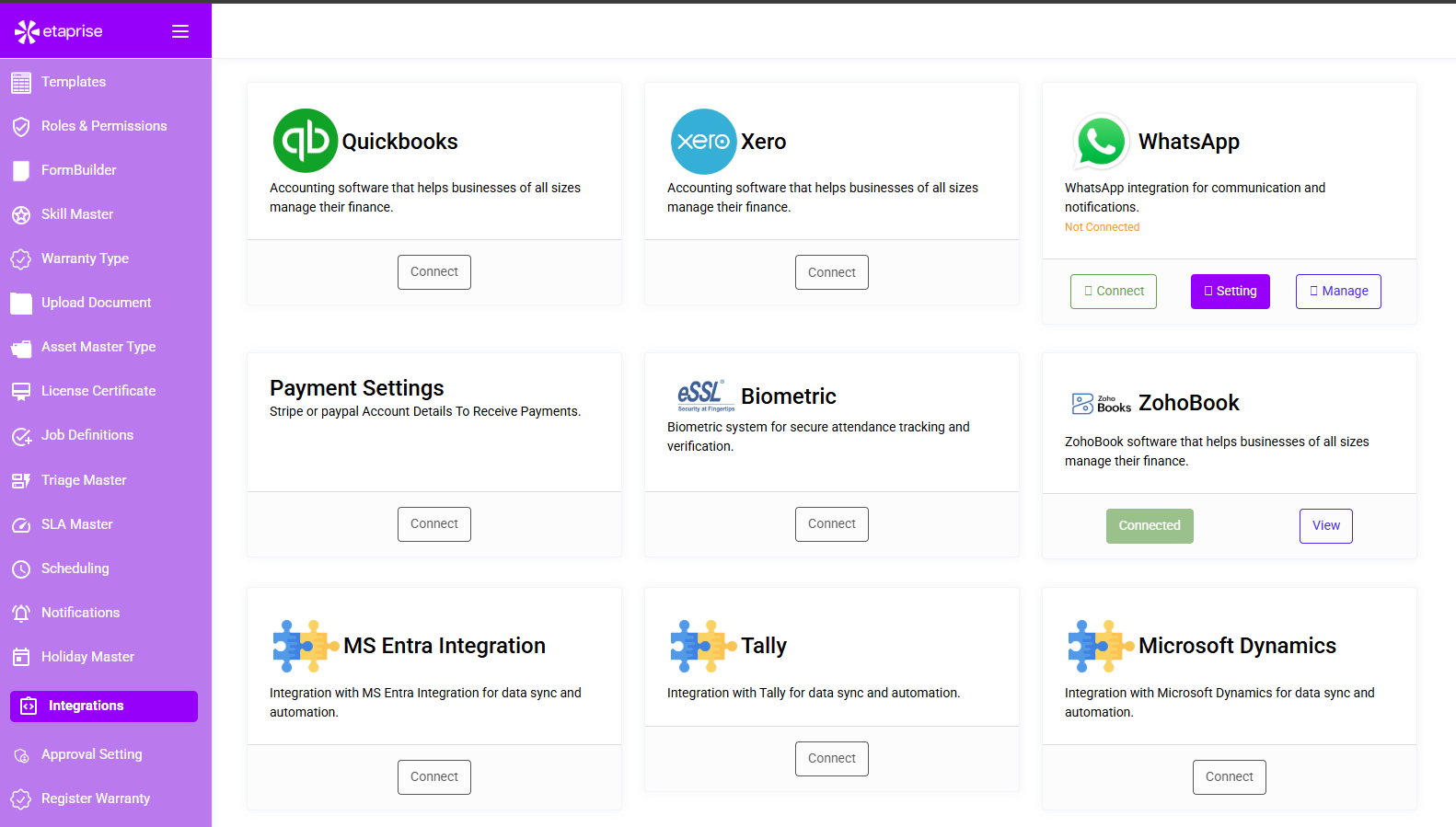
Inside Etaprise, navigate to Settings → Integrations, locate the Zoho Books integration card, verify that the status badge indicates Connected, and click View.
Viewing Connected Organizations
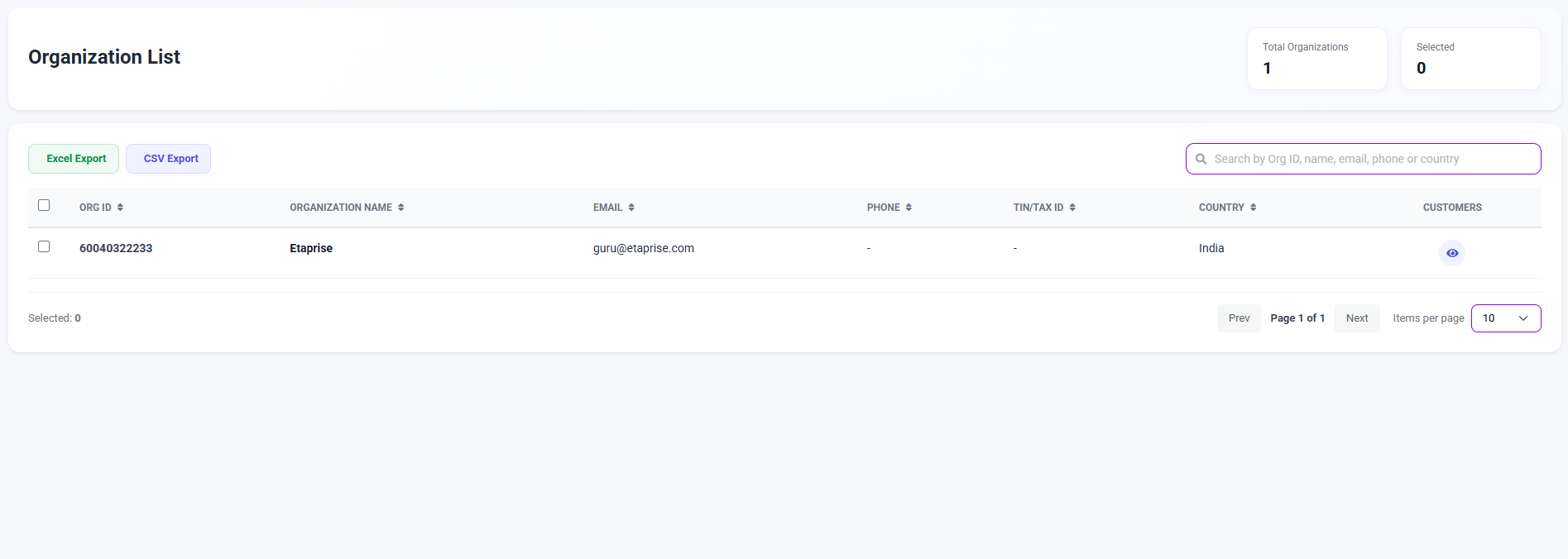
The Organization List displays all business entities linked to your authenticated Zoho account. Click the View (Eye) icon to inspect an organization and its associated customer records.
| Field Name | Description |
|---|---|
| Organization ID | Unique identifier for the business entity in Zoho Books |
| Organization Name | The official legal or trade business name |
| Email Address | Primary administrative email for billing and notices |
| Phone Number | Primary contact phone registered in Zoho |
| Tax ID Number | Tax registration / GST / VAT identifier |
| Country | Jurisdiction and primary country of operation |
Viewing Customer Records
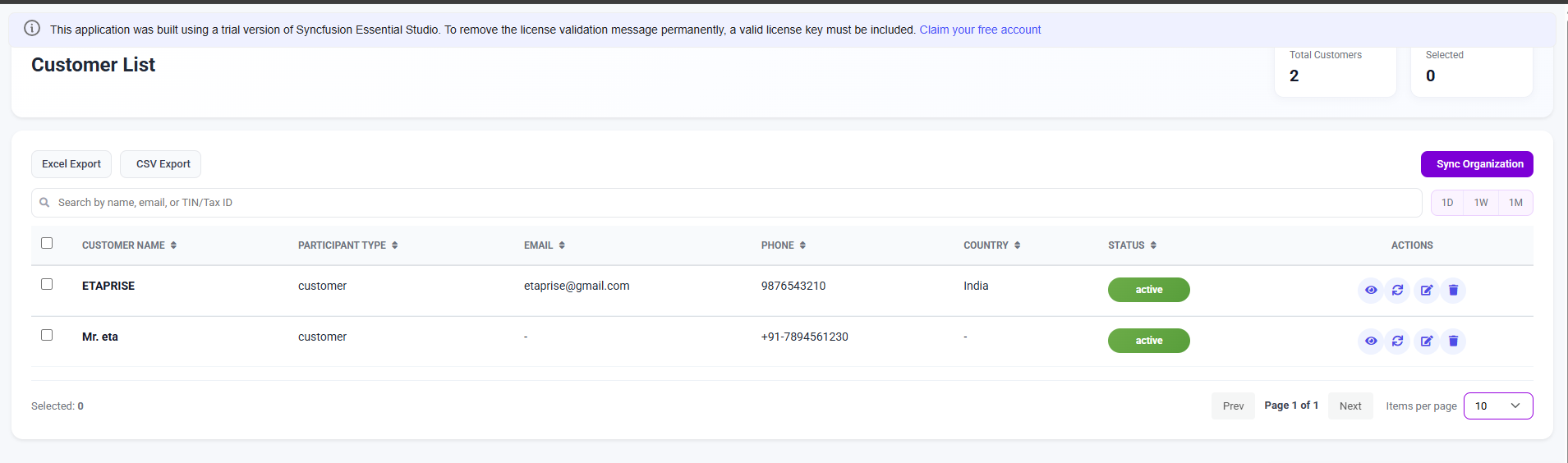
The Customer List displays accounts retrieved from the selected Zoho Books organization:
| Column | Data Meaning |
|---|---|
| Customer Name | Full individual name or commercial account title |
| Participant Type | Specifies whether the customer is a Business or Individual |
| Email & Phone | Primary electronic and telephone contact details |
| Country & Status | Geographic jurisdiction and Active/Inactive operational state |
Viewing Customer Details
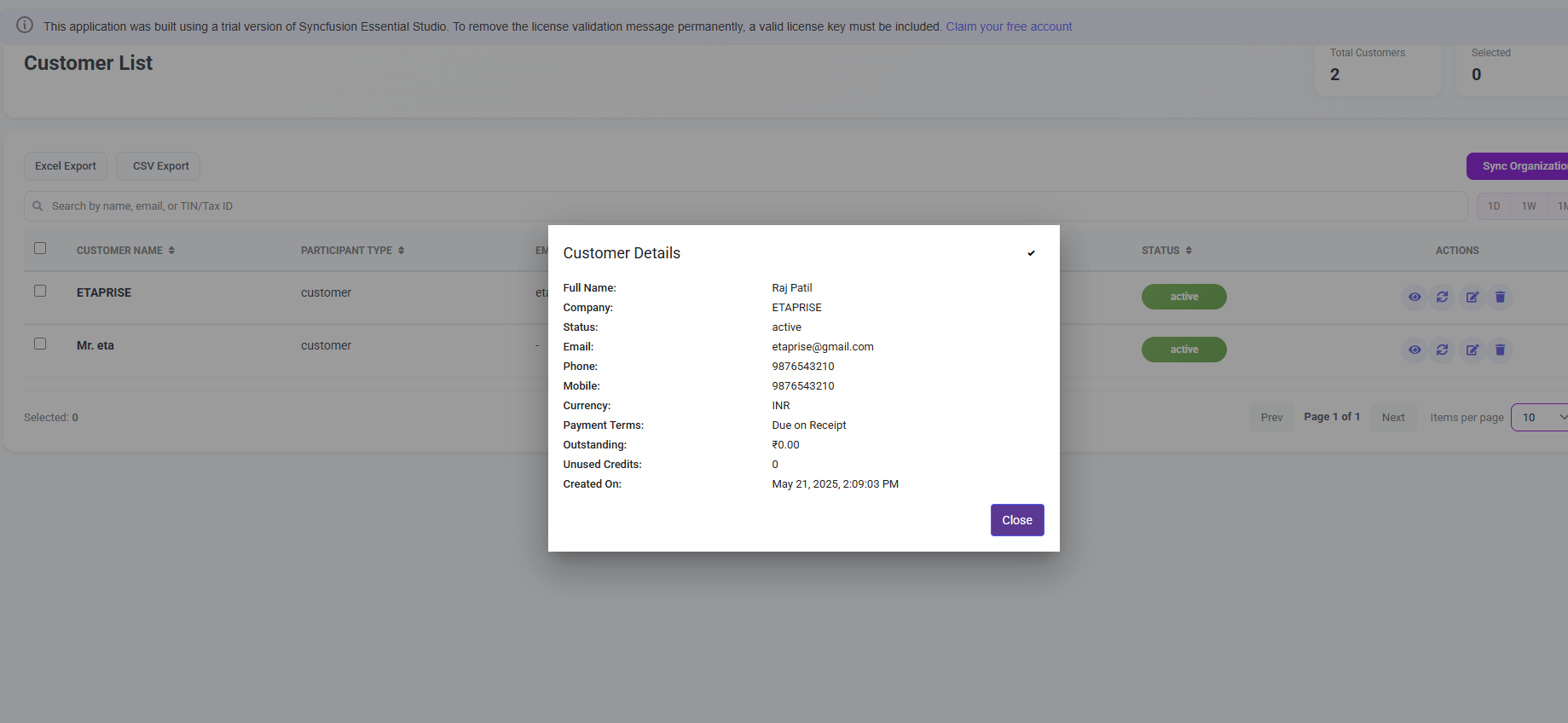
Clicking the View (Eye) icon opens the comprehensive customer card, displaying currency, payment terms, outstanding balance, and available store credits.
Editing Customer Information
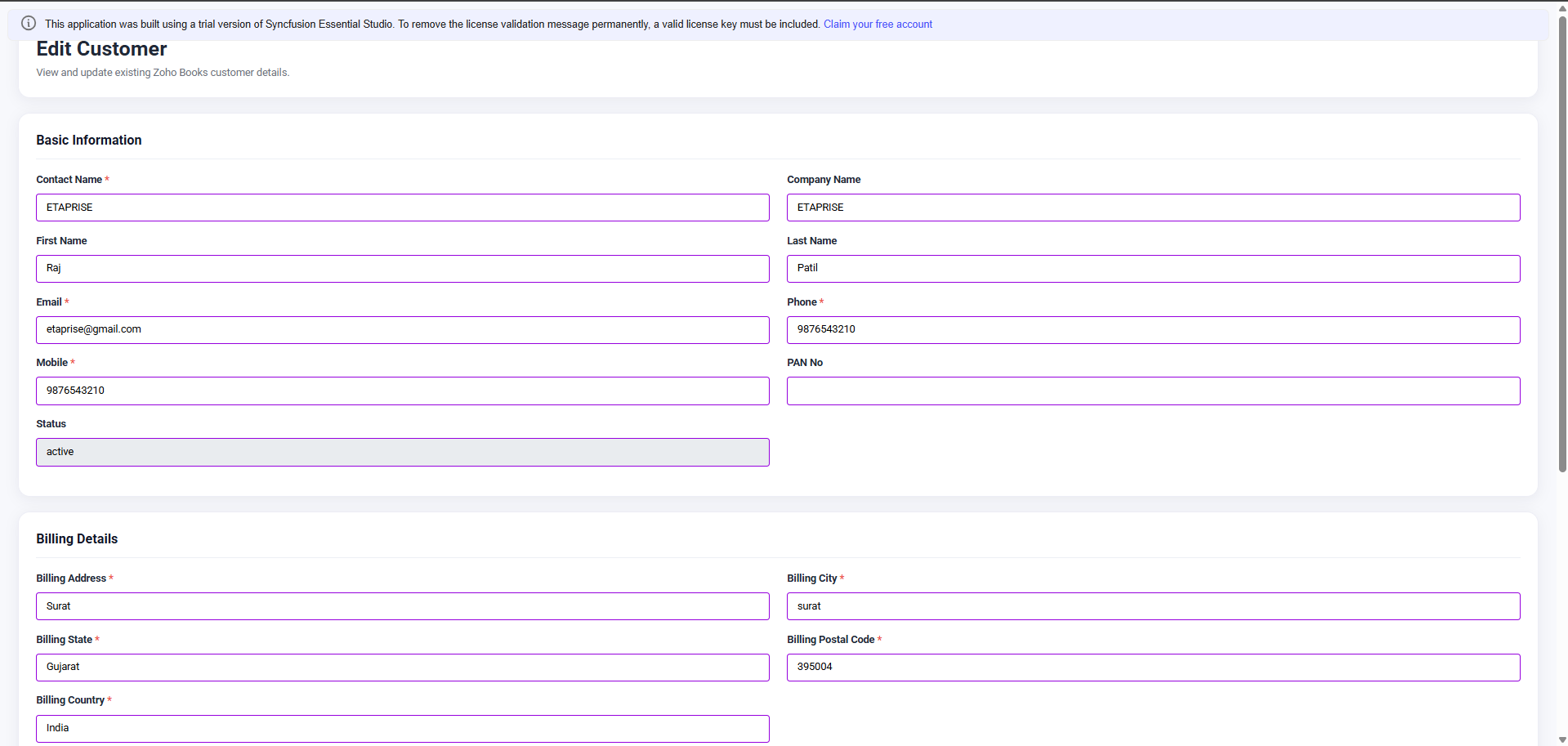
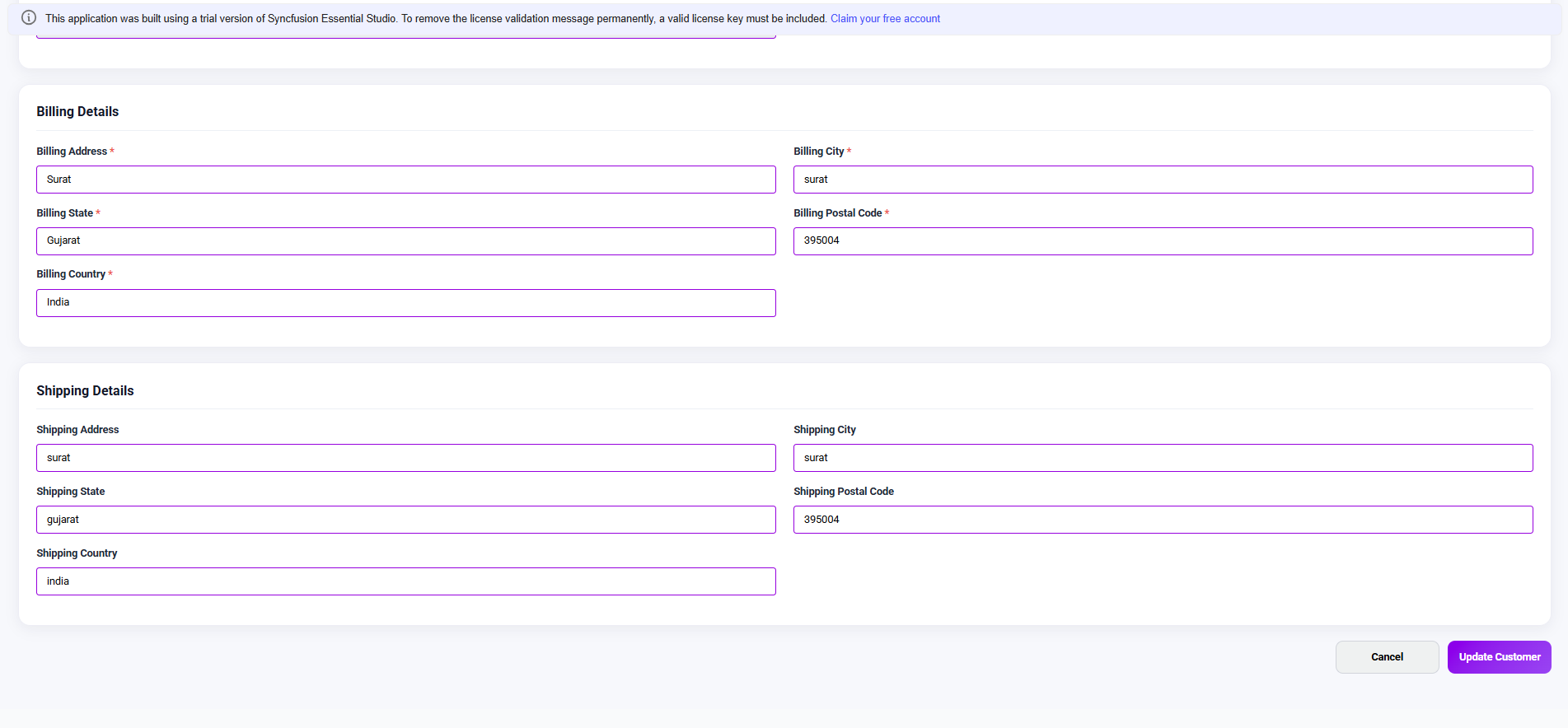
Click the Edit (Pencil) icon to update customer contact records, billing addresses, or shipping site locations. Changes saved here sync back to Zoho Books via API.
Synchronizing Customers to Etaprise
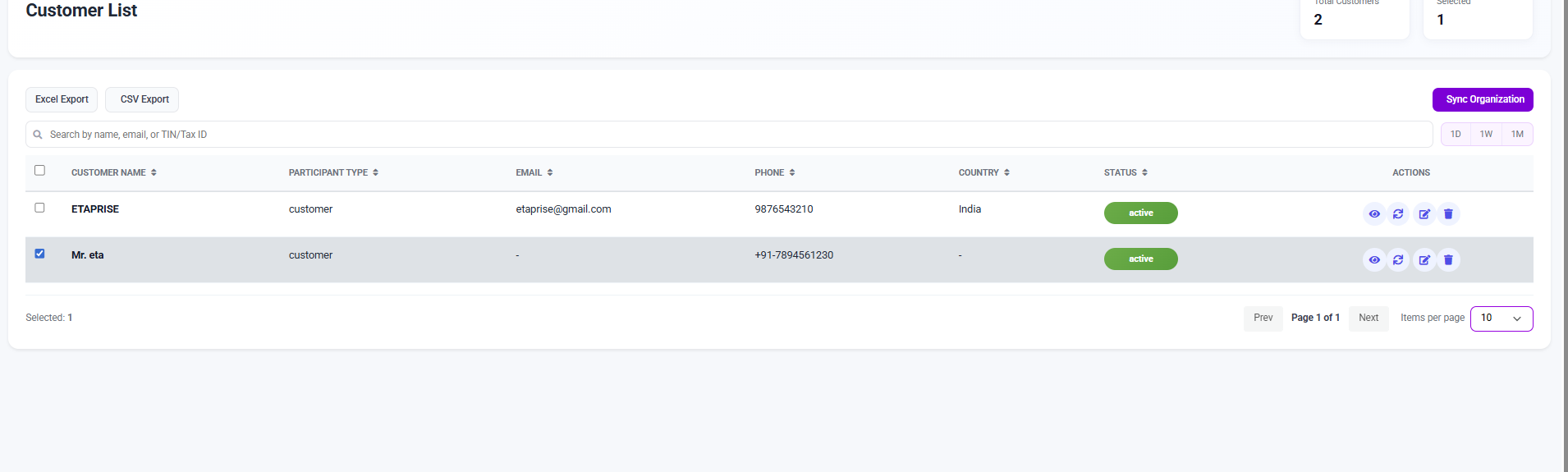
Customer synchronization can be executed in two simple steps:
Step 1: Select the customer record(s) using the left checkboxes.
Step 2: Click the Synchronize icon in the actions bar. Etaprise registers the records into the active operations database.
Customer Synchronization Results
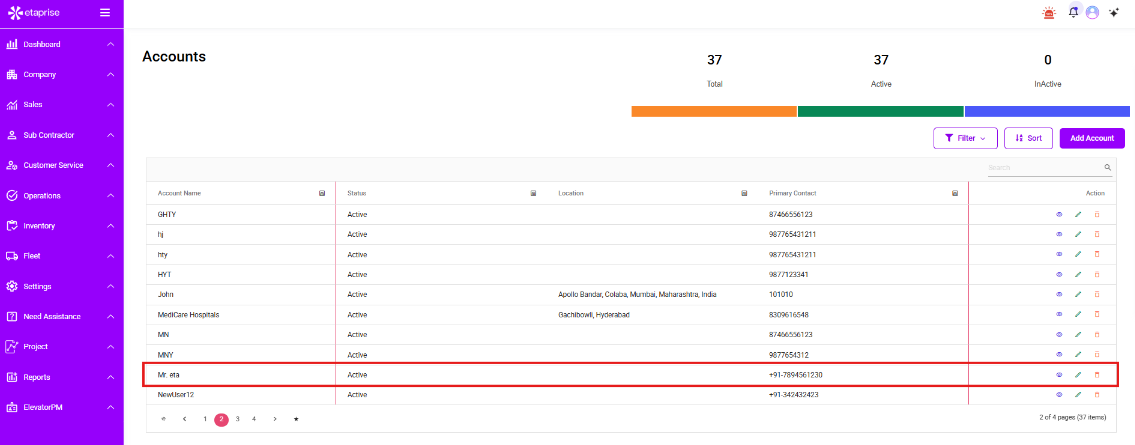
Once synchronized, customer records become immediately available in the Etaprise Accounts module under Sales → Accounts, ready for work order scheduling, contract bindings, and technician dispatch.
Contact Synchronization
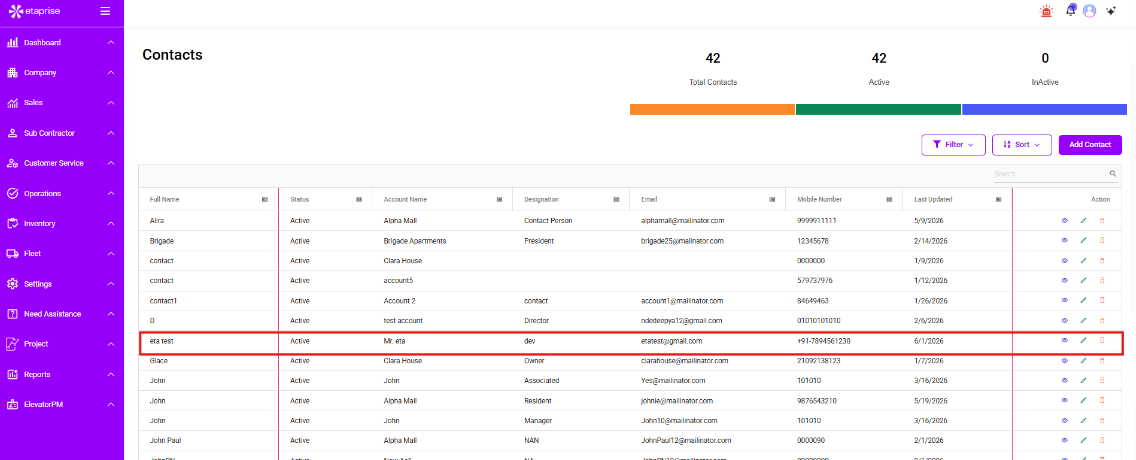
When a customer account carries linked contact persons in Zoho Books, those contact individuals are synchronized automatically into Sales → Contacts.
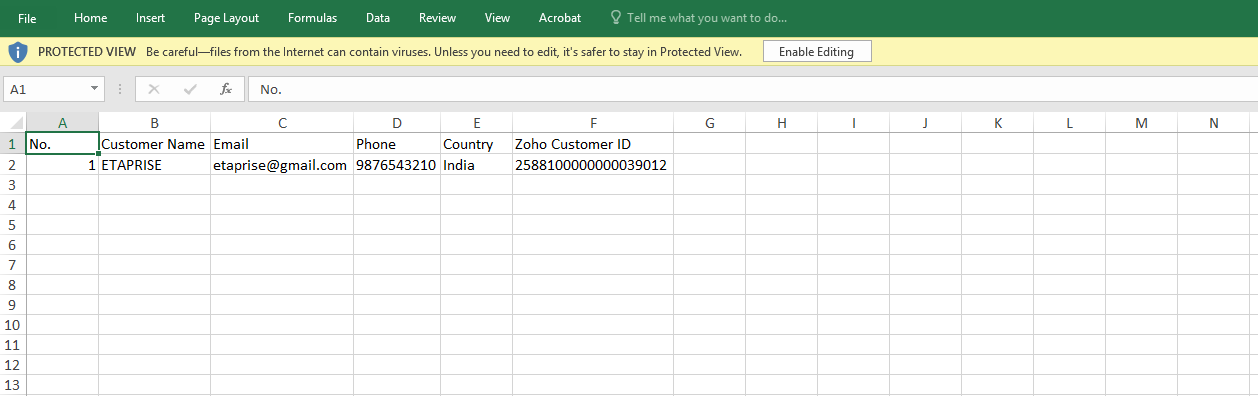
Exporting Customer Data
Administrators can export synchronized customer records for reporting, reconciliations, or external business intelligence in two standard file formats:
Pre-formatted multi-column spreadsheet suitable for finance teams.
Clean delimited text file for automated data pipelines and ETL imports.
Using Etaprise FSM Features
With customer profiles synchronized from Zoho Books, organizations unlock the full suite of Etaprise operations engines:
Managing Future Synchronizations
To refresh customer data, open the Customer List, select the required rows, and trigger the Synchronize action. Newly modified customer billing details or payment credit states update instantly.
Support & Assistance
For assistance regarding authorization requests, custom field mapping, subscription provisioning, or API synchronization questions, our dedicated technical integration engineers are available: