Etaprise Field Service Management
+ Zoho Books Integration Help
Everything you need to connect Zoho Books with Etaprise FSM — from initial setup to syncing customers and managing your field operations.
Integration Guide
This guide walks you through every step of connecting Zoho Books to Etaprise Field Service Management — from initial setup to syncing customers and using FSM features.
Prerequisites
Before starting, make sure the following are in place:
- An active Zoho Books account
- Access to Etaprise Field Service Management
- Permission to authorize third-party applications in Zoho Books
- Customer records available in your Zoho Books organization
- At least one Zoho Books organization exists in your account
- Your Zoho Books account is authorized to access Etaprise FSM
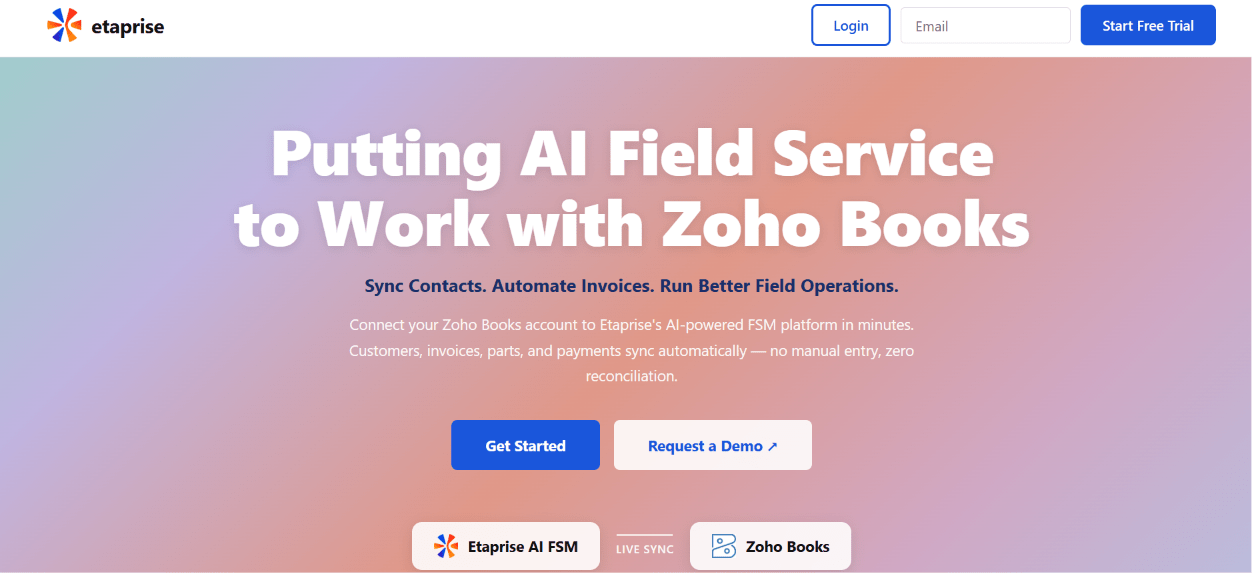
Accessing from Zoho Marketplace
Find and open Etaprise directly from the Zoho app ecosystem:
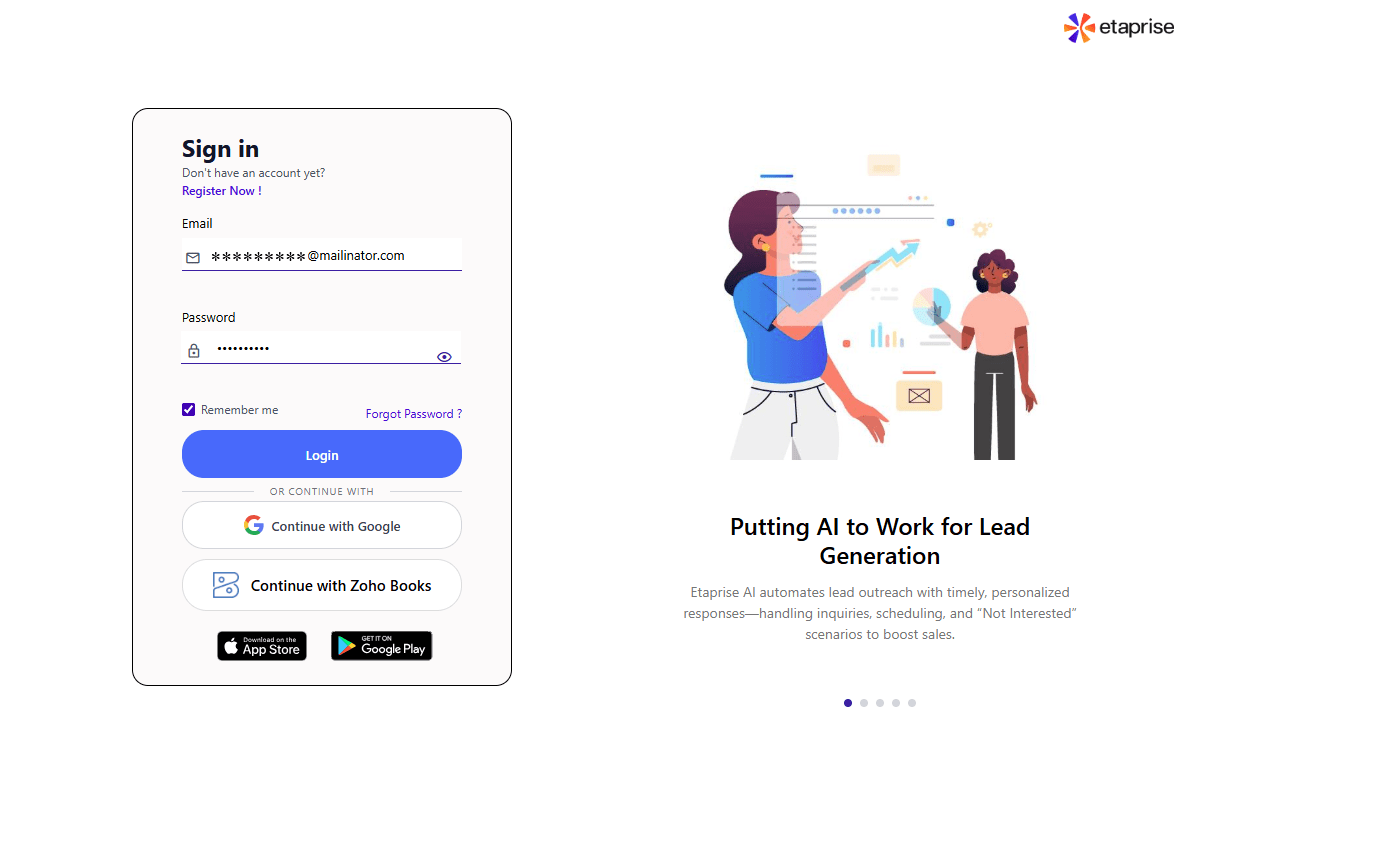
Sign In with Zoho Books
From the Etaprise landing page, click Login. You’ll be taken to the sign-in page at go.etaprise.ai/login.
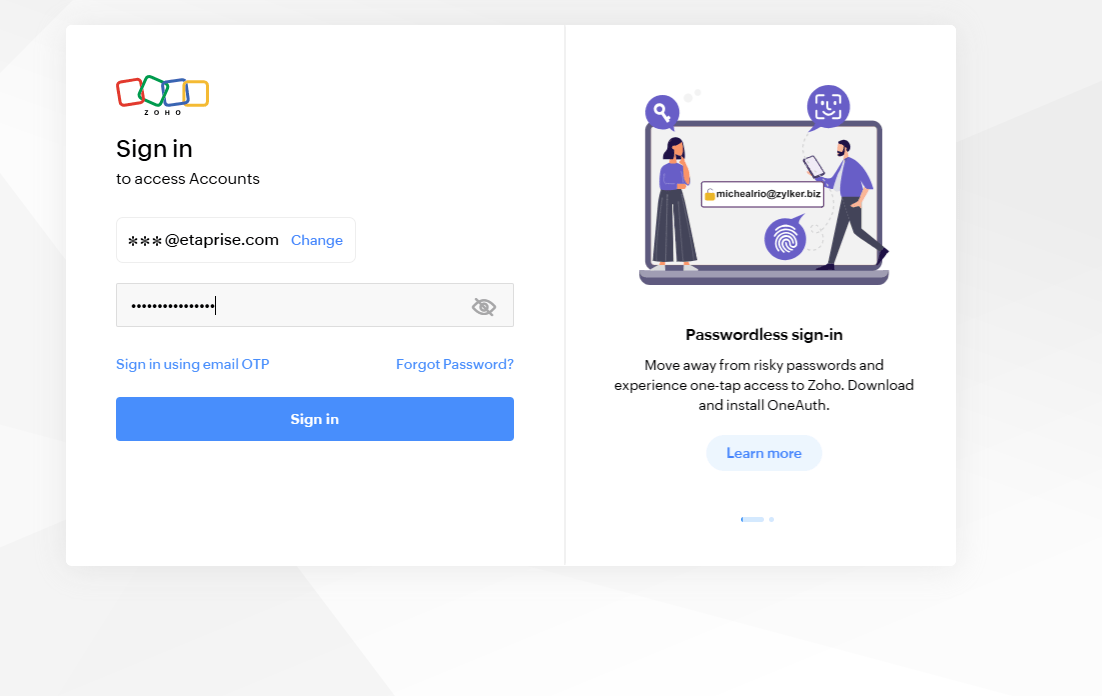
Granting Access Permissions
After authenticating with Zoho, review what Etaprise needs access to and grant consent:
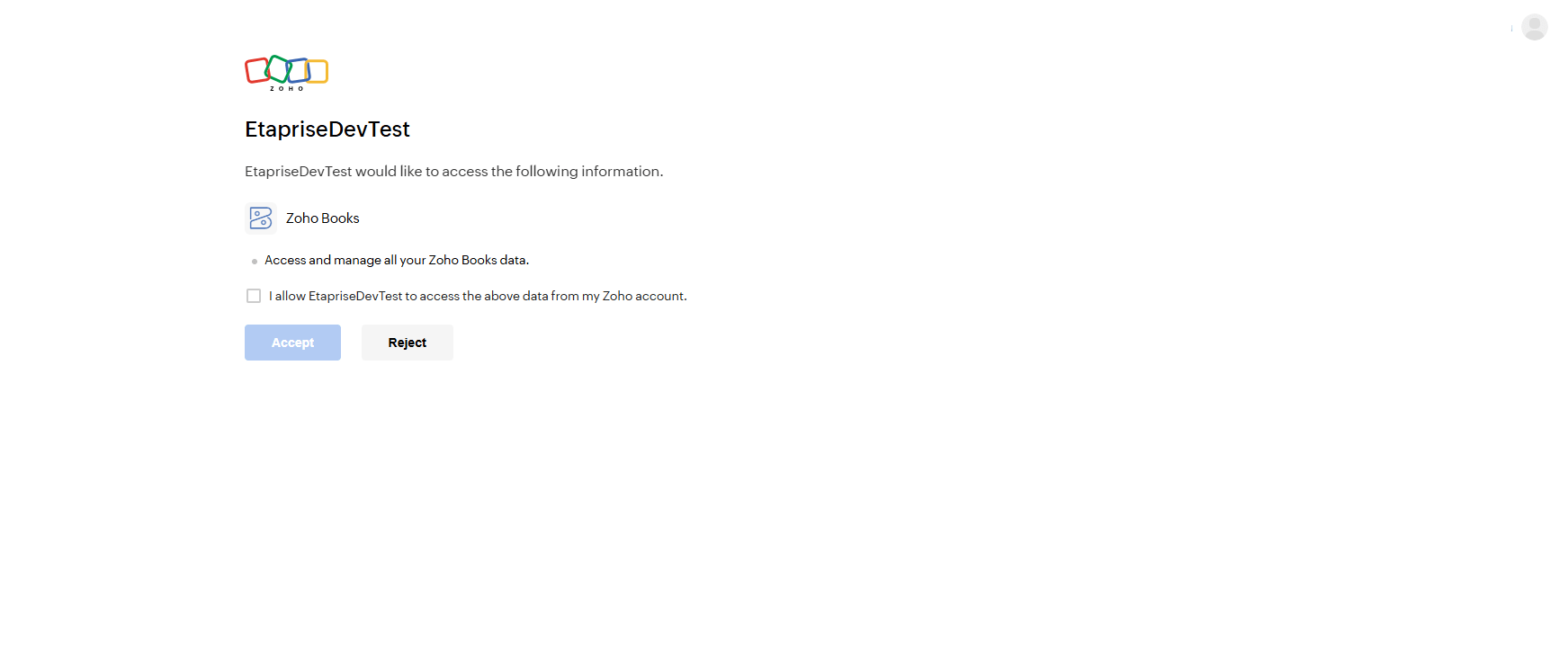
User Authorization Validation
After granting permissions, Etaprise checks whether your Zoho Books account has been approved for access:
Authorized users: If your account is already registered and approved in Etaprise, access is granted automatically and you’re redirected to the application.
Unauthorized users: If your account hasn’t been approved yet, access is restricted and a notification message appears. Contact the Etaprise team to gain access.
You can get access through any of these paths:
- Trial registration
- Subscription purchase
- Authorization by an Etaprise administrator
Connecting Zoho Books in Settings
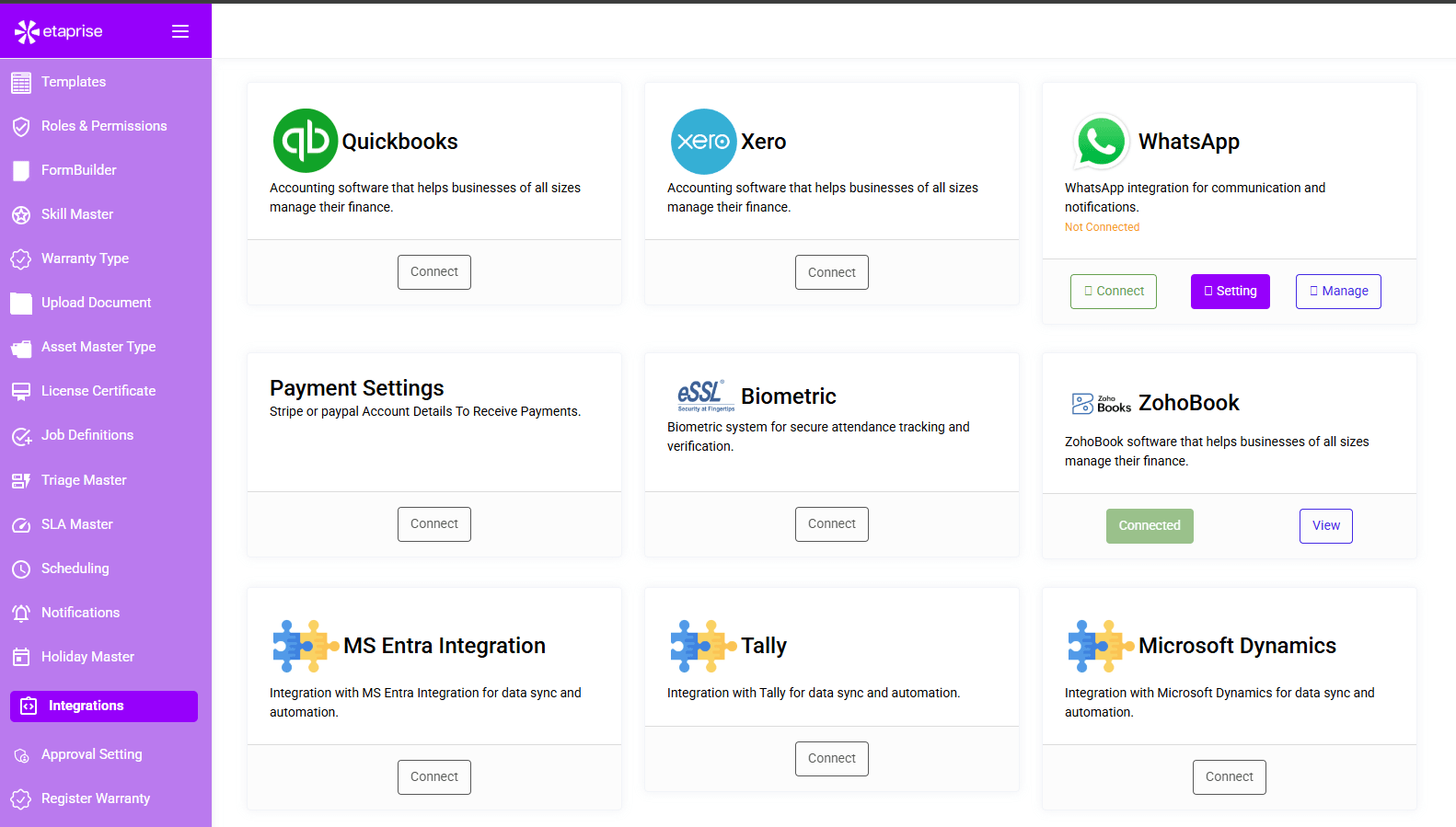
After successful authorization, verify and open the integration from your settings:
Locate the Zoho Books integration card and confirm the status shows Connected, then click View.
Viewing Connected Organizations
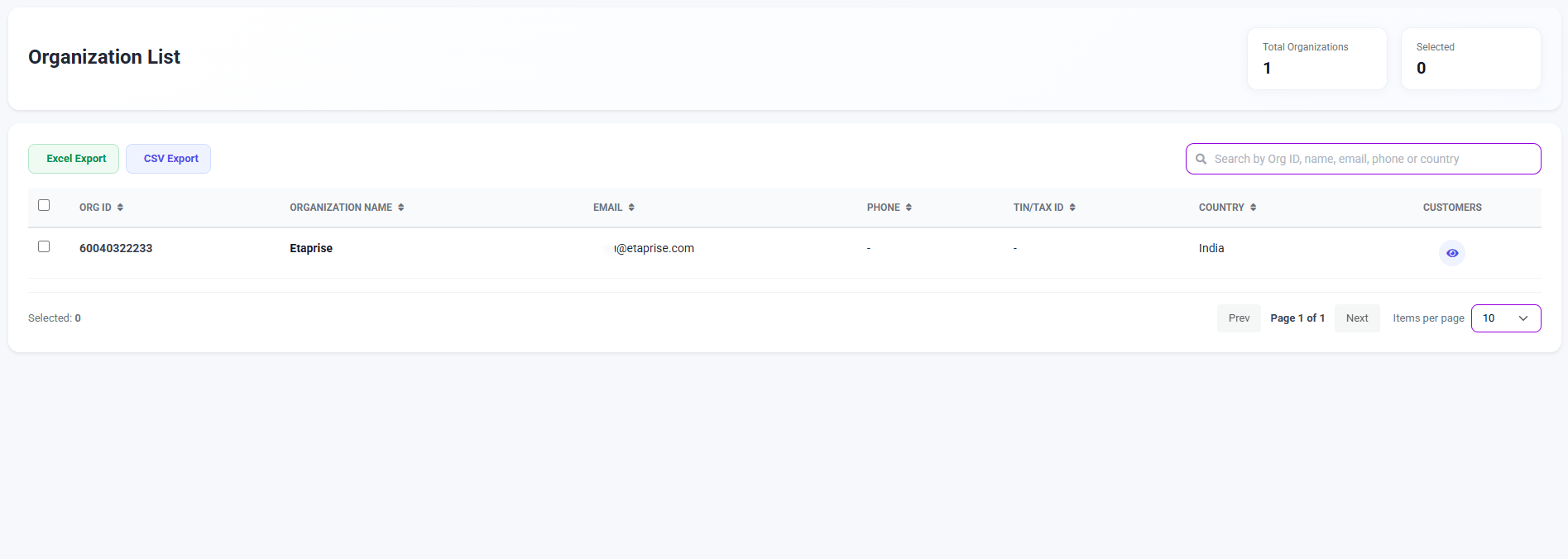
The Organization List page shows all Zoho Books organizations linked to your account. Click the View (Eye) icon next to an organization to see its customers.
| Field | Description |
|---|---|
| Organization ID | Unique identifier for the organization in Zoho Books |
| Organization Name | The name of the business entity |
| Email Address | Primary contact email for the organization |
| Phone Number | Organization’s primary phone |
| Tax Identification Number | Tax ID registered with Zoho Books |
| Country | Country where the organization is based |
Customer Records
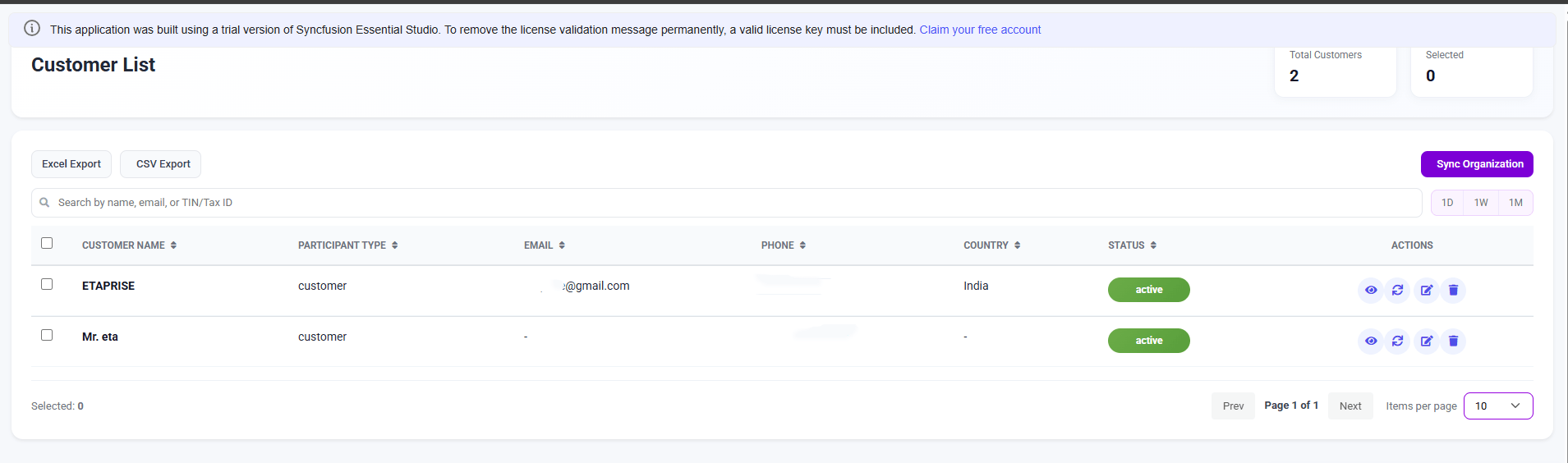
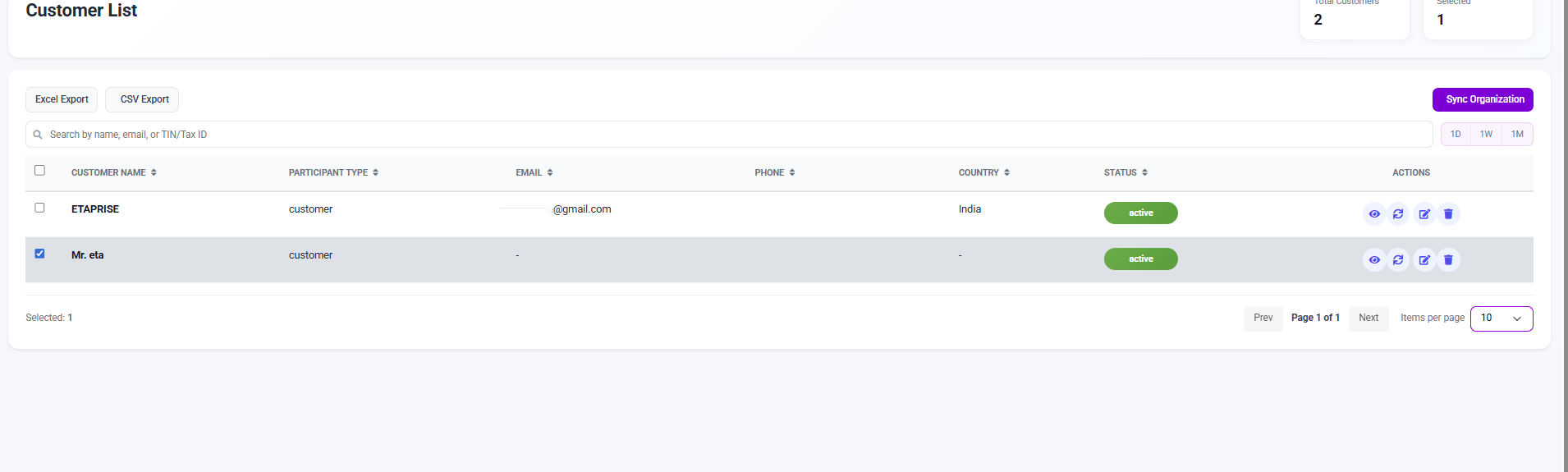
The Customer List displays all customers pulled from your Zoho Books organization.
| Field | Description |
|---|---|
| Customer Name | Full name or company name as stored in Zoho Books |
| Participant Type | Indicates whether the record is a company or individual |
| Primary email address | |
| Phone Number | Contact phone number |
| Country | Customer’s country |
| Status | Active or inactive status of the customer record |
Available actions per customer:
Customer Detail View — click the View (Eye) icon to see the full record:
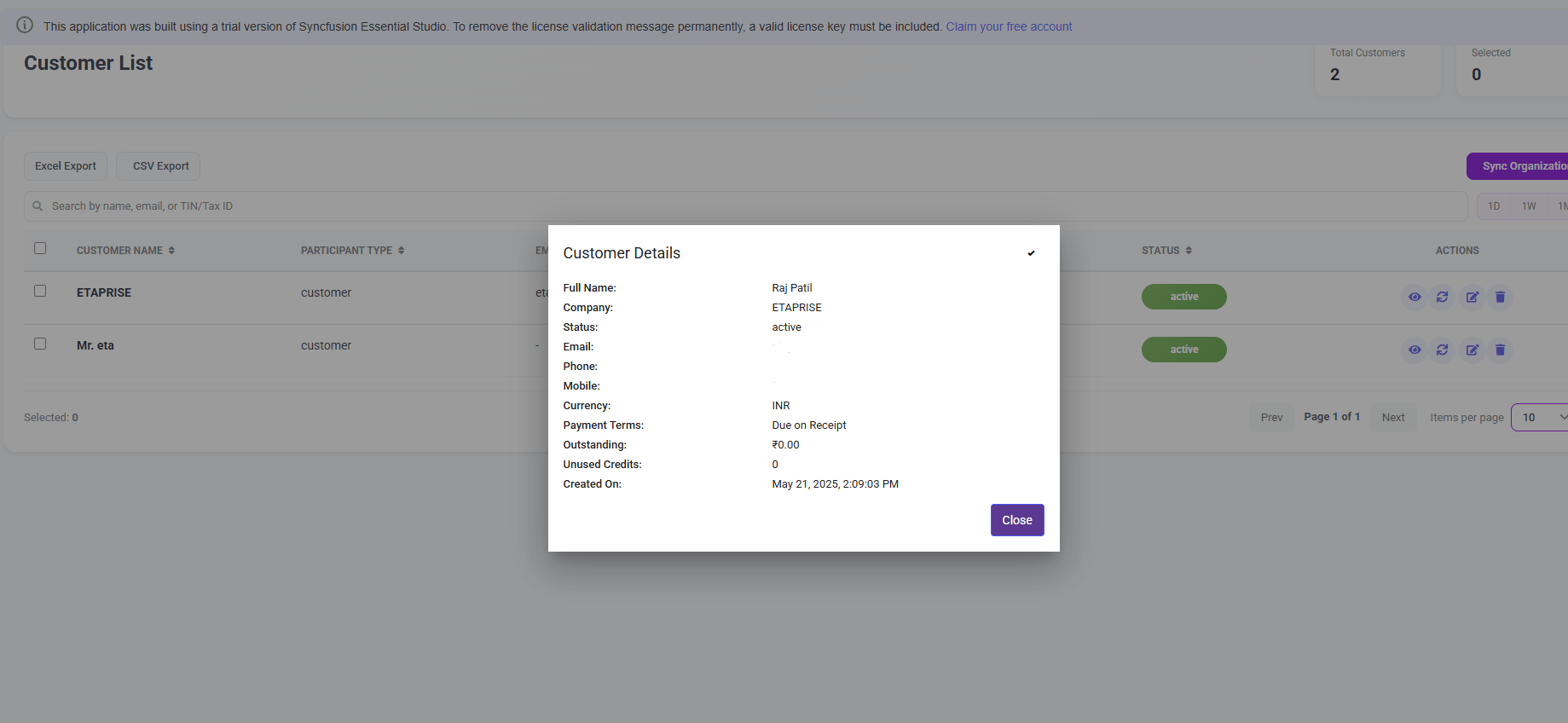
- Full Name & Company Name
- Email, Phone, and Mobile Number
- Currency & Payment Terms
- Outstanding Amount & Unused Credits
- Created Date
Editing Customer Information
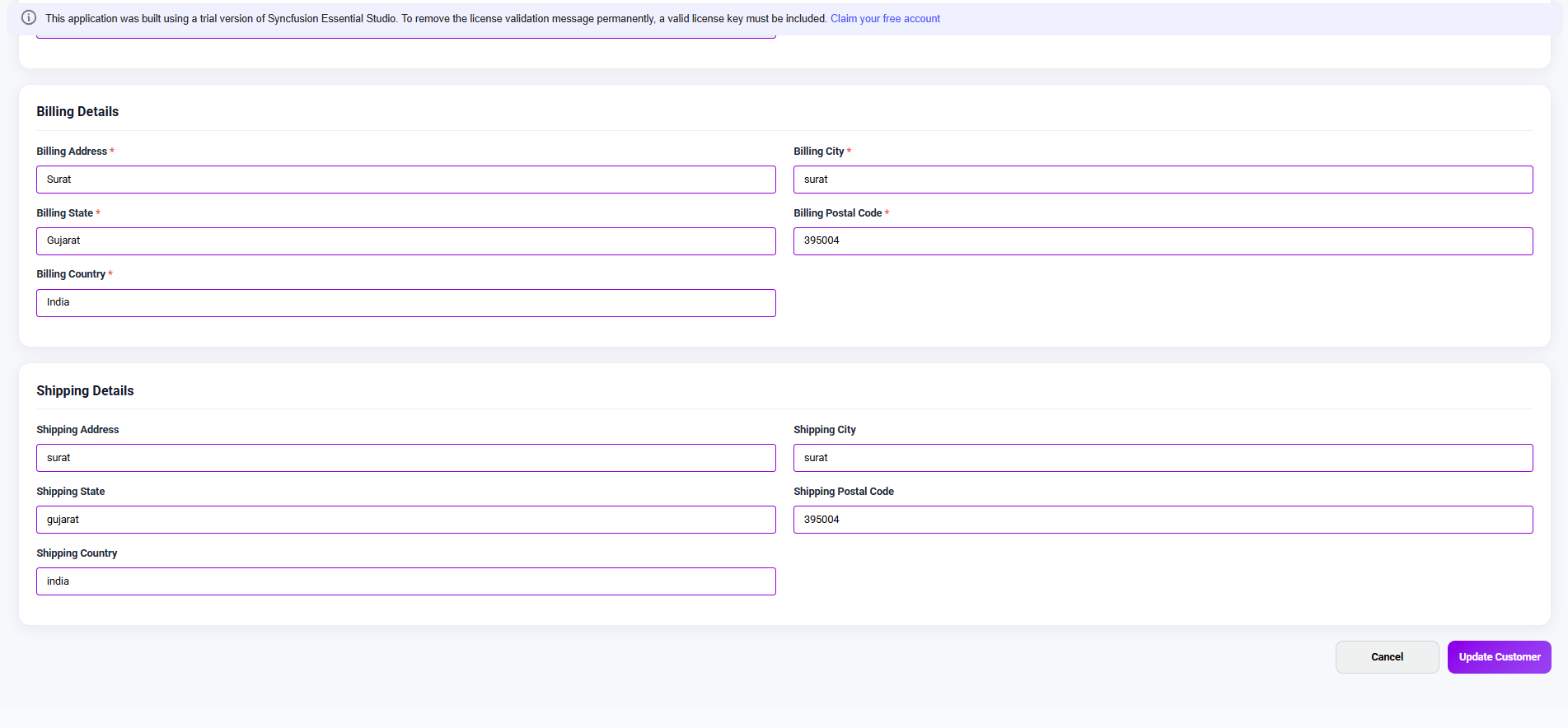
Click the Edit icon on a customer row, update the required fields, and save.
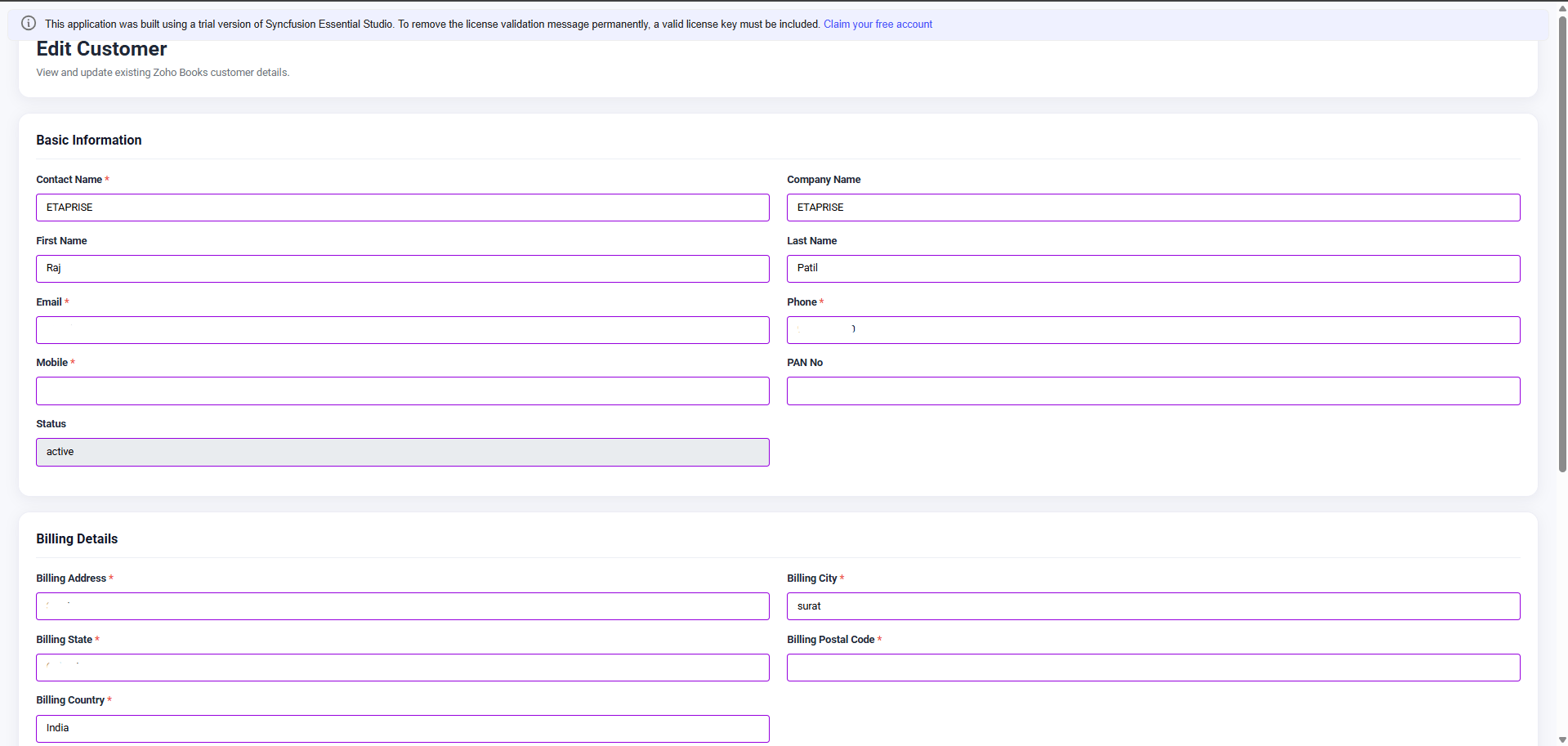
Basic Information
- Contact Name
- Company Name
- First & Last Name
- Phone & Mobile Number
- Status
Billing & Shipping
- Address
- City
- State
- Postal Code
- Country
Billing and Shipping address fields are separate — update each section independently as needed.
Syncing Customers to Etaprise
Customer synchronization is performed manually in two steps:
Synchronization Results
After syncing, customers are available in the Etaprise Accounts module:
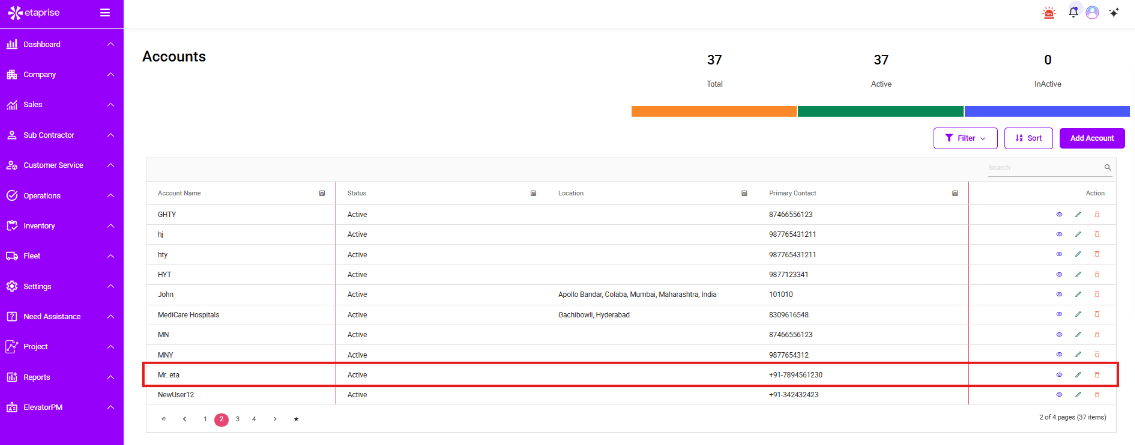
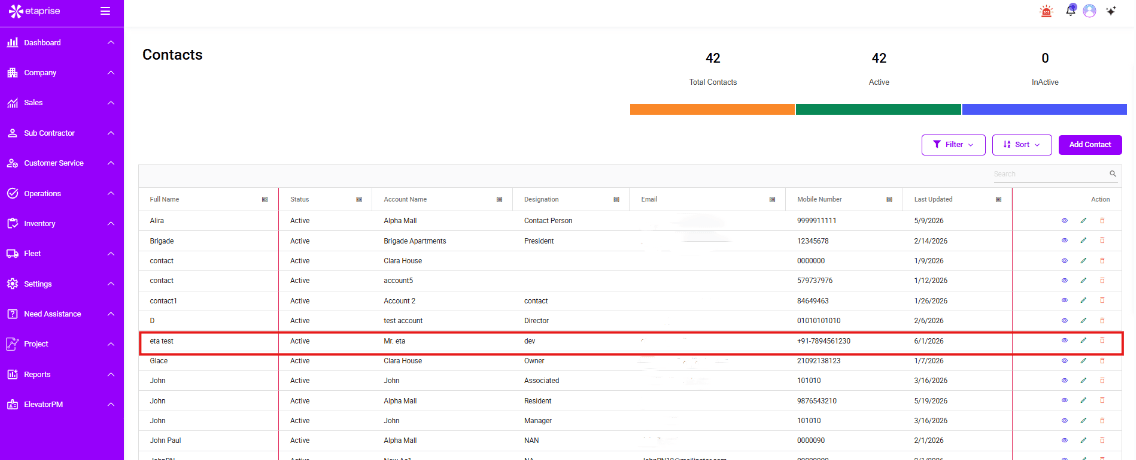
Contact sync: If the customer has associated contacts in Zoho Books, those are synced automatically to Sales → Contacts.
Exporting Customer Data
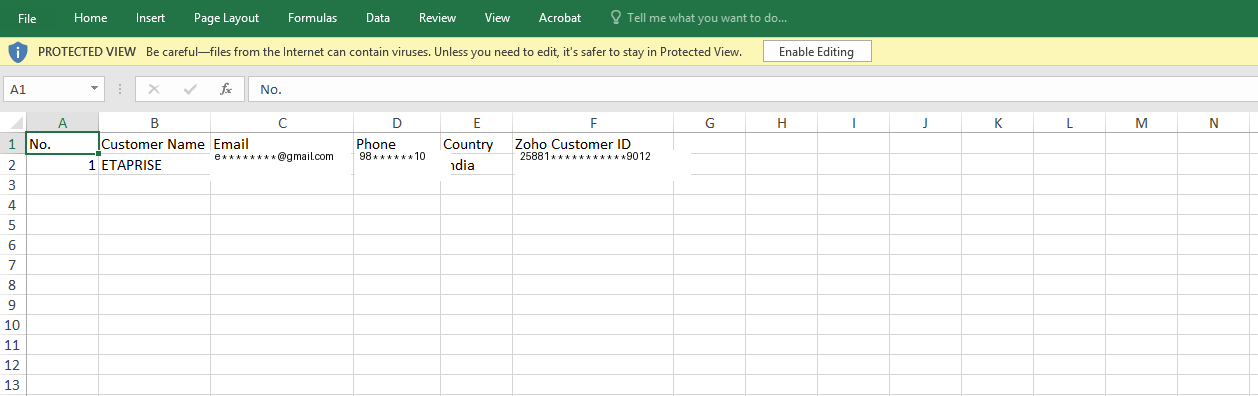
Export customer records for reporting and analysis in two formats:
📊 Excel Export
- Select the required records
- Click Excel Export
- Download the generated file
📄 CSV Export
- Select the required records
- Click CSV Export
- Download the generated file
Available FSM Modules
After syncing customers, these Etaprise Field Service Management modules are available:
Managing Future Synchronizations
The current version supports manual customer synchronization only. Automatic background sync is not yet available.
To refresh customer data at any time:
- Open the Customer List
- Select the records you want to refresh
- Perform synchronization again
Frequently Asked Questions
Support
For assistance with the Zoho Books integration, subscription access, authorization requests, or synchronization issues, reach out to the Etaprise team.
Get in touch with our team
Have a question or need help with setup? Email us and we’ll get back to you promptly.
✉️ info@etaprise.com